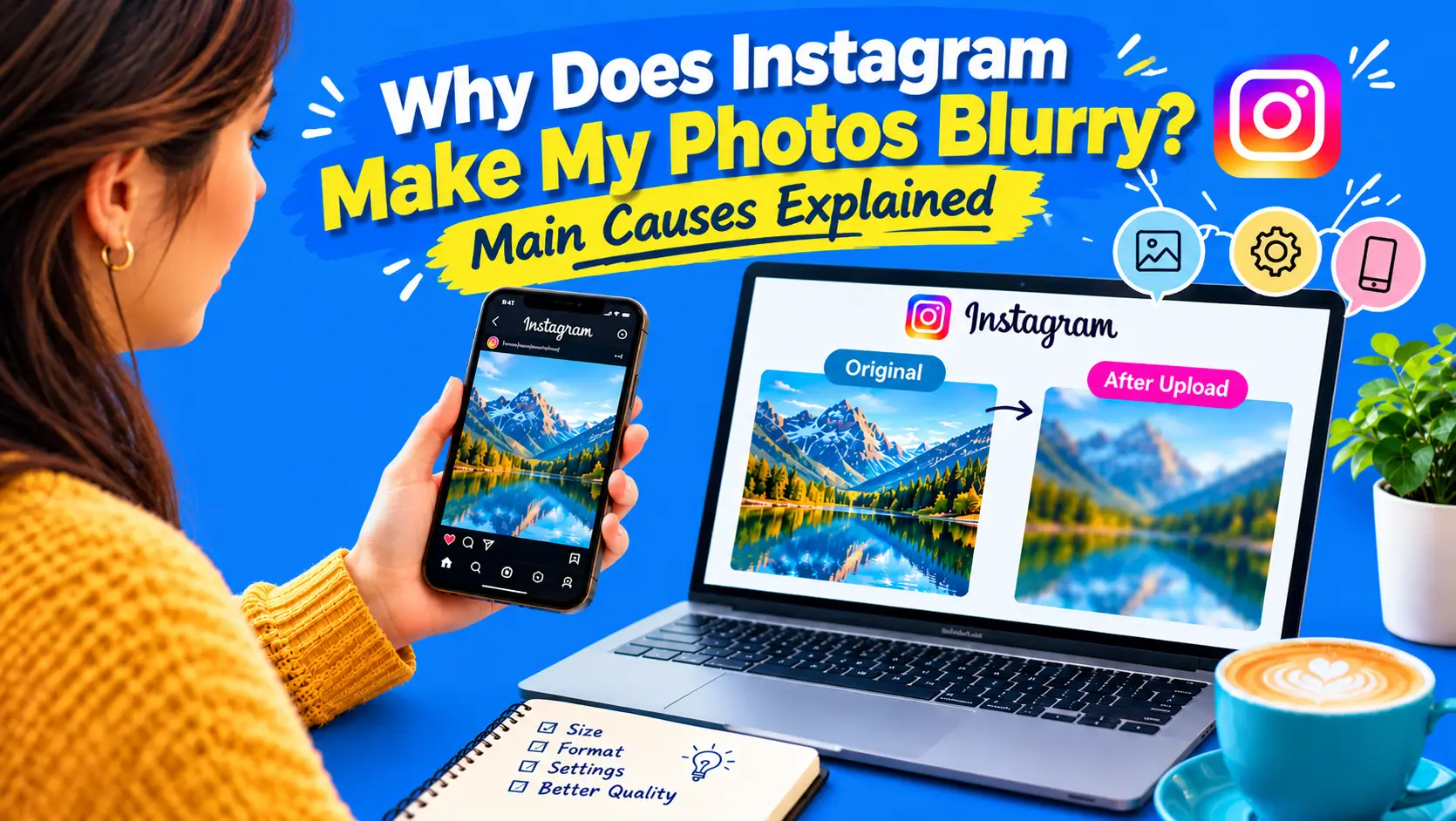
Ever spent twenty minutes editing a photo, loved it, posted it, and then winced? It’s a frustrating problem that many Instagram users run into. The same picture appeared perfectly crisp on the phone screen. On Instagram it looks like it caught a cold.
Good news first. In most cases, the issue is fixable. Not always perfectly, but a lot better than what you’re getting now.
So What’s Instagram Doing to Your Photo?
When you upload a picture, Instagram doesn’t keep your original file as it is. It saves a smaller copy and shows that one to people. Feed photos are displayed at a width of up to 1080 pixels. If your photo is larger, it gets resized down. Smaller photos may appear softer when displayed at a larger size, while unsupported aspect ratios can lead to cropping.After that, the file is compressed, which means some detail is removed so the photo loads fast, even on slow internet.
Instagram doesn’t say how strong this compression is, so any exact number you see online is just a guess. You can’t turn it off, but you can upload a file that needs fewer changes.
Cause 1: Your Photo Is Huge
New phones take big pictures. Cameras take even bigger ones. We’re talking 4000 pixels wide, sometimes 6000. Sounds great, right? Except Instagram only needs 1080, so it has to shrink all that down for you.
The problem is that when a big photo is made that much smaller, tiny details get lost. Hair can look blurry, leaves can lose their texture, and small text may become hard to read.
A simple way around this is to shrink the image manually before uploading it. Most editing apps let you export at 1080 pixels wide.Resizing the photo carefully before uploading gives you more control over its final appearance, although Instagram may still process it.
Cause 2: Your Photo Is Tiny
This is the flip side of the same problem. Maybe you cropped a photo very tightly, or you saved a small copy to send to someone.If your photo is only 700 pixels wide, it may look soft when displayed larger because there isn’t enough original detail. Once the post goes live, that lost detail cannot be recovered.
Try to keep your photo at 1080 pixels wide or more. If a crop leaves you with something small, crop a little less. A slightly wider shot that’s sharp looks better than a tight one that’s fuzzy.
Cause 3: Wrong Shape
Instagram only allows a certain range of shapes in the feed. If your photo falls outside the supported aspect ratios, Instagram may crop it or require you to adjust the framing before posting.
Here’s a cheat sheet:
| Post Type | Size (pixels) | Ratio |
| Square | 1080 x 1080 | 1:1 |
| Portrait | 1080 x 1350 | 4:5 |
| Tall portrait | 1080 x 1440 | 3:4 |
| Landscape | 1080 x 566 | 1.91:1 |
| Story or Reel | 1080 x 1920 | 9:16 |
Another common mistake is zooming in with two fingers on the upload screen. This enlarges only a small part of your photo, so the result looks softer. It’s better to crop the photo in your editing app before you open Instagram.
If you’re posting a carousel, the first photo usually sets the shape for the whole post. Stick to one ratio across every slide, and nothing will be trimmed off.
Cause 4: No Sharpening After Resizing
When you make a photo smaller, the edges can look a little softer than before. This is normal, and it isn’t something you did wrong.
Many editing apps have a “sharpen for screen” option when you export. Turn it on, but keep it light. A small amount brings back the clean look. Too much sharpening makes the edges look rough, and Instagram’s compression can make that roughness even more noticeable.
Cause 5: The Photo Was Already Compressed Too Much
Some people save their photos at very low quality, thinking this will help them beat Instagram’s compression. It doesn’t. Once detail is removed, you can’t get it back. Then Instagram compresses the photo again, so the quality drops twice.
For most photos, exporting as a high-quality JPEG around 80–90% is a practical starting point, although the best setting depends on your editing app. Going all the way to 100 mostly makes the file bigger, and you usually won’t see much difference.
Cause 6: The Photo Traveled Through Another App
How did the photo get onto your phone in the first place? If it came through a chat app like WhatsApp or Messenger, or you saved it from a cloud preview, you may be uploading a compressed copy without realizing it. Chat apps automatically shrink images to save data, and every shrink costs you quality.
Screenshots can also reduce usable detail because they capture what’s displayed on your screen rather than preserving the original photo’s full resolution.
Cause 7: Color Settings Make It Look Dull
Sometimes the problem isn’t really sharpness. If a photo uses a wide color profile and the profile gets lost during upload, the colors can look flat and washed out. A dull picture often feels blurry, even when the detail is fine.
Export in the standard sRGB color profile. It’s the safest choice for phones and screens, and it keeps your colors close to what you intended.
Cause 8: Your App Settings Are Working Against You
Two Instagram settings can affect how sharp your photos look.
1. Data Saver
This feature is meant for people with limited internet. Data-saving settings can affect how media loads and displays, so check whether the photo looks clearer on a stable connection or another device before assuming the upload itself is blurry.
The fix: Turn Data Saver off, then check the photo again.
2. Upload at Highest Quality
Some versions of the app have an option called “Upload at highest quality,” usually found under the media quality settings. Its exact location changes between app versions, so you may need to look around the settings menu.
The fix: If you find it, turn it on. It can help, but keep your expectations realistic. Instagram doesn’t promise that this removes compression completely, so your photo may still lose a little quality.
Cause 9: A Weak Internet Connection
A slow connection can delay uploads or cause Instagram to display a lower-resolution preview while the full image loads. Sometimes a photo looks blurry only because the full version hasn’t finished loading.
Post on a steady Wi-Fi network when you can. If a new post looks soft, wait a minute, close the app, and open it again before you decide something went wrong.
The Simple Fix: A Quick Checklist
You don’t need to do everything every time. Run through this list when a photo matters:
- Use the original, not a screenshot or forwarded copy
- Crop to a supported shape yourself
- Resize to 1080 wide (don’t enlarge small files)
- JPEG, sRGB, quality 80 to 90
- Light sharpening for screen
- Data saver off, high quality upload on if you see it
- Post on a steady connection
Follow those steps and Instagram has far less to change. That means fewer chances for it to make things worse.
Tips That Sound Smart but Aren’t
The internet repeats the same advice until it feels like fact. A few that don’t hold up:
“Export at 300 DPI.” That’s for printing. On a screen only pixel size counts.
“Use 1440 pixels wide for extra detail.” Feed photos get scaled to roughly 1080 wide anyway, so you’re just handing Instagram more to shrink. (My guess is the number comes from the height of a 3:4 photo, which is 1440.)
“PNG skips compression.” Not necessarily. Instagram still processes uploaded images, so using PNG doesn’t guarantee better quality than a well-exported JPEG.
“iPhones upload sharper than Android.” Instagram has never published a rule like that. What people notice is usually the camera, the app version, or the connection.
High quality upload stops compression completely.” No evidence supports this claim.
Stories and Reels
These are tall, 9:16, and fill the whole screen. When something is shown that big, small flaws stand out more. Go with a vertical 1080 x 1920 file, keep the important stuff away from the edges, and don’t pile stickers and text on top of a detailed photo.
Maybe the Camera Is the Culprit
Sometimes the photo was already soft before it got near Instagram. Dirty lens, bad light, shaky hands, heavy digital zoom. Any of those. Then the app piles its changes on top.
Wipe your lens (seriously, it’s usually smudged). Hold steady. Use daylight when you can. And if your subject is far off, walk closer rather than zooming.
Also, update the app once in a while. An old version or a phone that’s nearly full can act up in strange ways. If the same photo looks fine on a friend’s phone, your device is the likely problem.
Don’t Send Client Photos Through Instagram
Even with perfect settings, Instagram shows a small, squeezed version of your work. For getting noticed, that’s totally fine. For handing photos to a client, it’s a bad idea. Give them full-size files through a gallery or a cloud link.
FAQ: Blurry Photos on Instagram
Why does my photo look sharp on my phone but blurry on Instagram?
Instagram’s resizing and compression can soften fine details, especially when the original photo is too small, heavily compressed, or cropped significantly.
Can I post without losing any quality?
Not completely. Instagram processes every photo you upload, so some loss is unavoidable. Following the steps covered above keeps that loss barely noticeable.
Does Instagram compress photos?
Yes, it compresses every photo. Instagram doesn’t share the exact level of compression publicly.
Why does my new post look blurry for a few seconds?
You’re most likely seeing a low-quality preview while the full photo loads. On a slow internet connection, this can last longer.
Do carousels look worse than single photos?
No, carousels don’t reduce quality by themselves. The problem starts when slides have different shapes and Instagram crops some of them. Keep all slides the same shape to avoid this.
Wrapping Up
Instagram doesn’t make photos blurry for one single reason. It’s usually a mix of a file that’s too big or too small, a shape the app has to crop, missing sharpening, and one more round of compression on top.
The good news is that you can fix most of it quickly. Resize to 1080 pixels wide, pick a supported ratio, keep your edits light, sharpen gently, and upload the original file. Do that, and your photos will stay much closer to the way you meant them to look.